
How to Create a Pull Planning Meeting (Procore Web)
Role
Supers
Steps
Take and Add Photos to the Pull Plan Album
• Using Procore mobile app, take photos of the boards and add them to Pull Plan Album.

Procore Drive
• Go to Procore drive and update the Buttcon 6 week look ahead under folder 1.8

Select Open to open the 6 week look ahead sheet.

Update the Sheet
- Update the red circled cell
- Add Tasks

• Once the file is updated, Close the file by selecting “X”
• Select Submit in Procore drive

Go to Meetings
• Open Google Chrome
• Go to Procore website https://login.procore.com/
• Select Meeting under Procore Tools
• Select “+ Create Meeting”
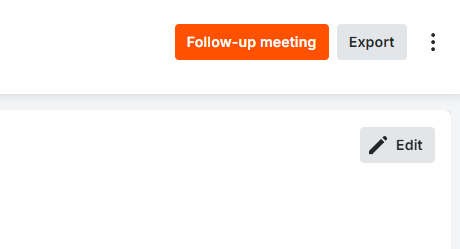
Note: if a Pull Planning meeting is already created, select "Follow up meeting" to create the next meeting. see below "Follow up meeting" instructions.
https://help.buttcon.com/article/174-how-to-create-a-follow-up-meeting-procore-web

• Select the Meeting date, Start and End time.

• Select Attach Files
• Select Buttcon 6 week look ahead file then Attach

• Select Photos then Pull Plan album
• Select Attach

Add Attendees
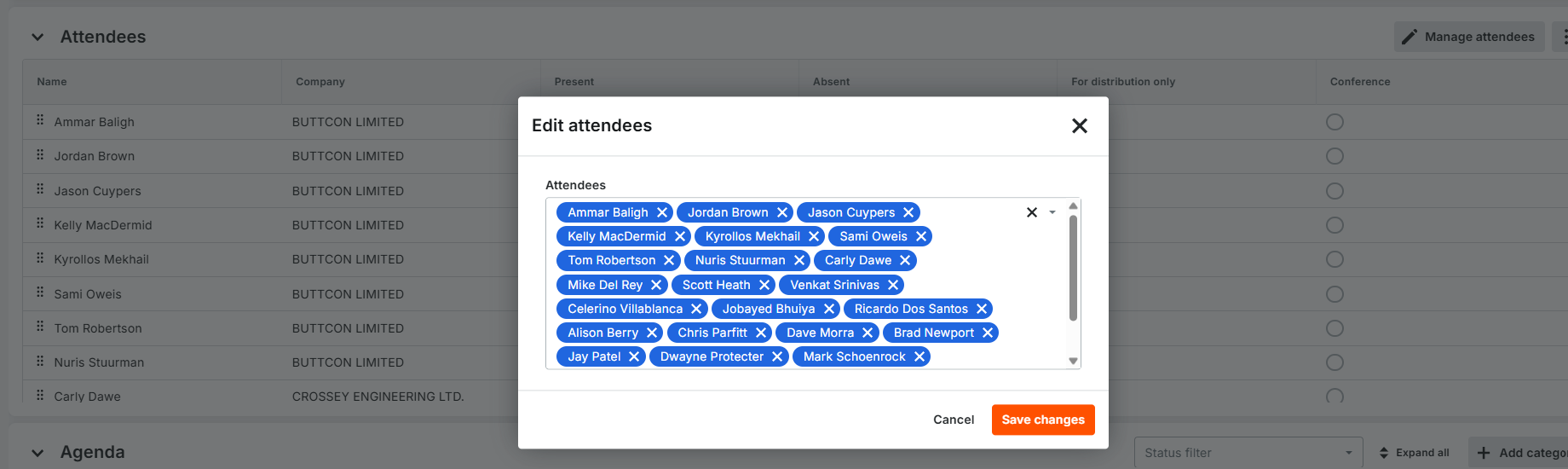
• Add attendees beside Schedule attendees
• Select Save changes
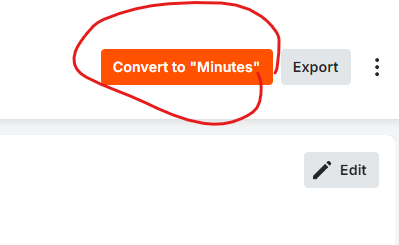
Convert to minutes
• Select convert to minute to mark the attendees present or absent.
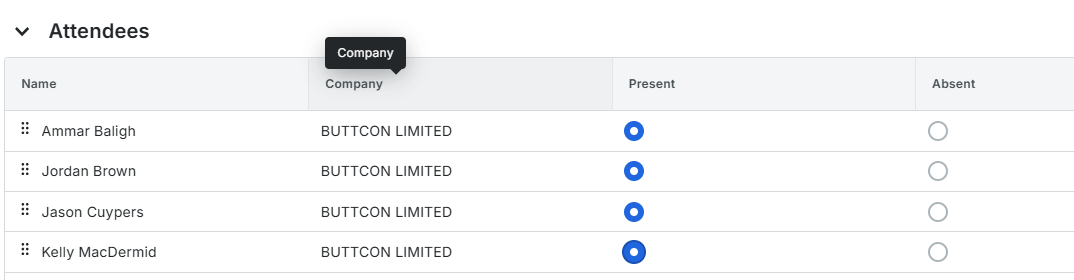
Attendance
• Click Present or absent beside each attendees.
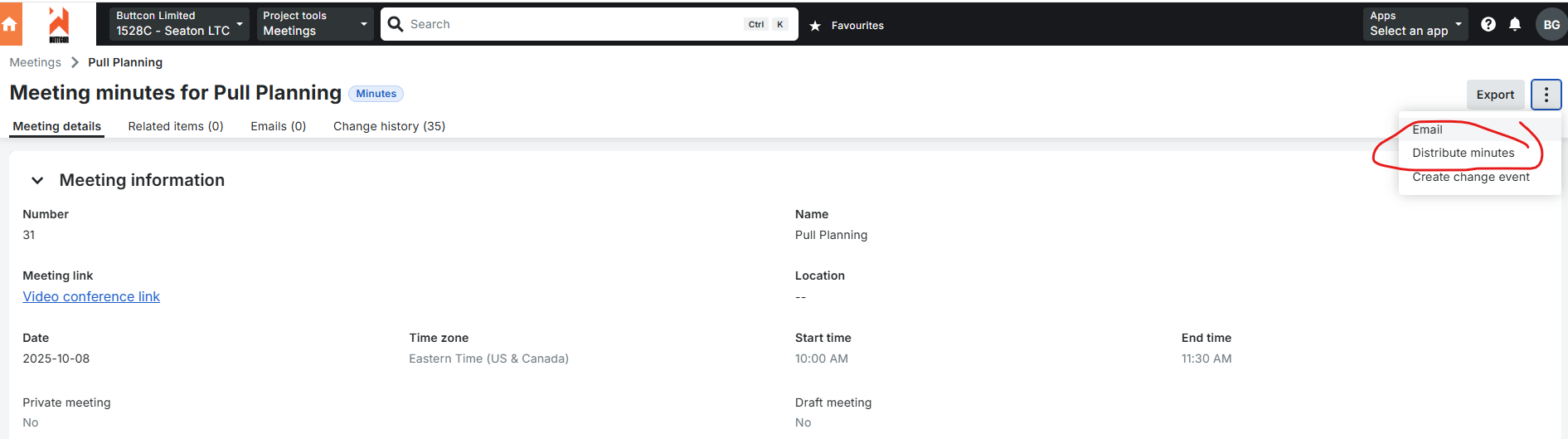
• Select Distribute minutes to send the meeting minutes to the attendees.
Follow up meeting
• To create the next meeting minutes, go back to the last meeting minutes
• Select Follow-up meeting.
Refer to the supers manual below for further details regarding the Pull Planning meeting.
Also, see recording below.