
How to Create an RFI with Draft with AI option (Procore Web - Beta)
In Beta
This feature is currently in beta.
Caution
Like all AI tools, Assist's answers might not be entirely accurate. AI-generated responses should be verified for accuracy.
The Draft RFI with AI feature in Procore is designed to help you write better RFIs and surface relevant information from project documents, potentially answering your questions before you submit them.
Steps
- Navigate to the project's RFIs tool.
- Click Create.
-
Click Draft RFI with AI.

-
Enter the questions you have and any information about potential cost or schedule impacts.
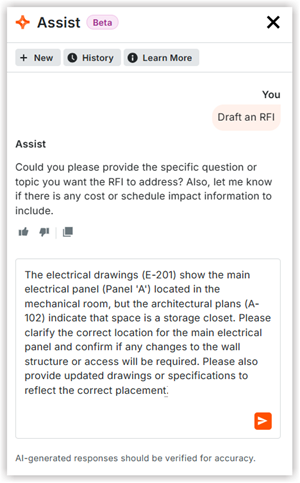
Click the send button.
Draft with AI will process the information you provided and suggest a subject, question, cost impact, and schedule impact where applicable.
- Click Apply to RFI if you are satisfied with the agent's suggestions and begin completing the rest of your RFI.
OR
- Click Find Related Items to check for existing information that might address your question.
- This action sends a prompt to Procore's AI to search for any relevant information that could help answer the question.
- Review the generated report for any valuable insights.
- This process helps you quickly determine if your question has already been answered.
Next Steps
Click one (1) of these:
-
Create as Draft
If you want to create a 'Draft' version of the RFI, click this button. This saves the RFI as a 'Draft'. The Ball In Court responsibility remains with the RFI Manager and emails are sent according to the project's settings.
-
Create as Open
If you want to create a new RFI as 'Open', click this button. The users designated as the RFI's Assignees have the first Ball In Court responsibility. The system shifts the Ball In Court responsibility to the users designated as the RFI's Assignees and emails are sent according to the project's settings.