
How to Create Budget Snapshot for Recons (Procore Web)
Role
PMs
Objective
Create a budget Snapshot for Recons.
Steps
https://help.buttcon.com/article/132-how-to-change-the-budget-views-procore-web
Select Budget Analyze variance, see below how to.
https://help.buttcon.com/article/215-how-to-create-budget-variance-procore-web
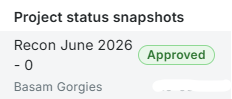
Ensure the Previous month Recon snapshot status is updated, see below how to.
https://help.buttcon.com/article/237-how-to-update-the-budget-snapshot-status-procore-web
Each monthly forecast produced should be saved, once the forecast has been finalized, by selecting + Create then Snapshot and saved using the standardized labelling below.

The labelling below will be entered into the “Name” field.
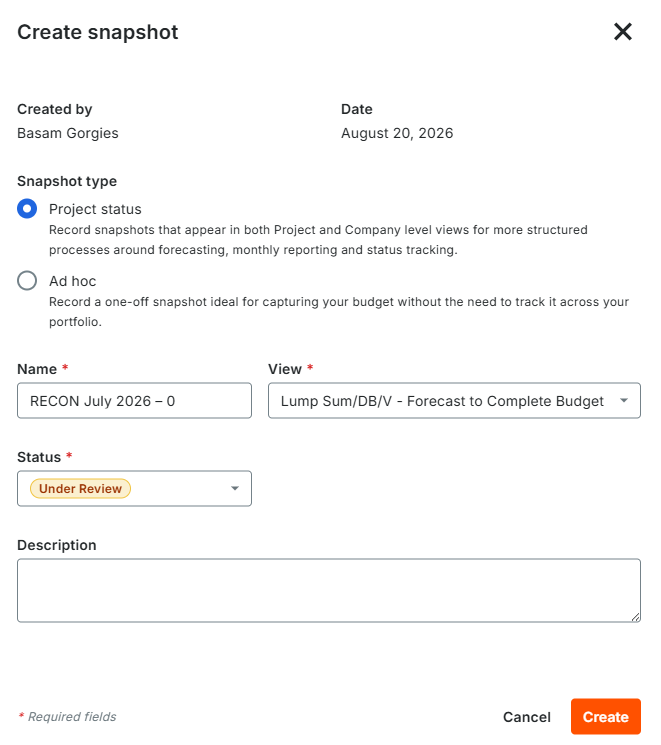
Recon Month Year – The Version #/revision #
Example:
Original submission would be labelled: RECON July 2026 – 0
Revision 1 resubmission (if required) would be labelled: RECON July 2026 – 1
Revision 2 resubmission (if required) would be labelled: RECON July 2026 – 2
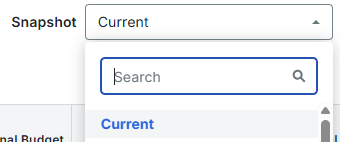

You will then ensure when printing your budget you are printing from the saved snapshot so that the title appears on the print out.
In order to do so, from your “Snapshot” drop down you will select the Recon Snapshot you have just saved and from your “Comparison Snapshot” drop down you will select the Previous month Recon Snapshot. Under Group columns, select Cost Code Tier 1 as shown below to group the budget codes by divisions and then select “Export” and “PDF”.
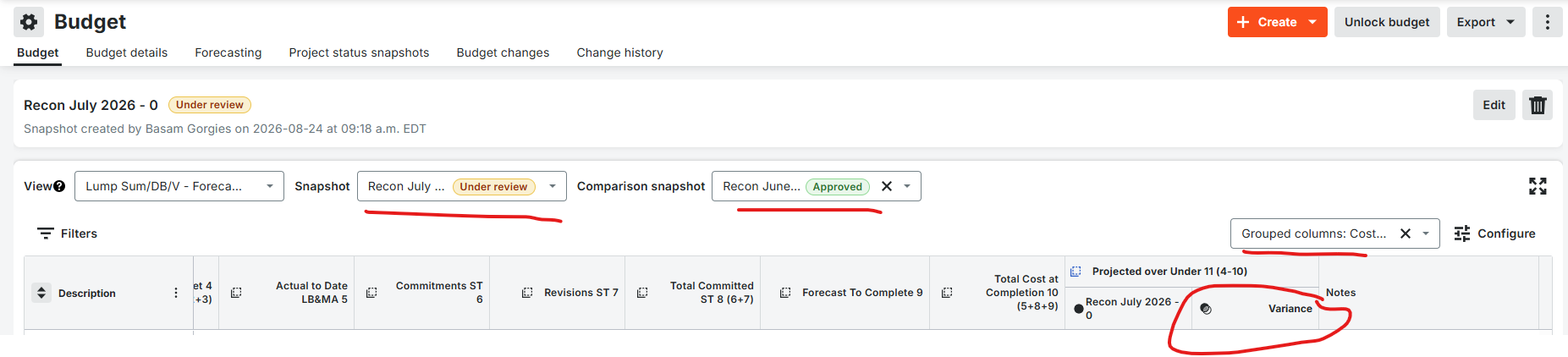
This will be the copy that you will use to annotate your monthly swings and hand in with your recon.
Repeat if you are required to resubmit your Recon by using the revisions labelling.
Please do not deviate from the labelling.
For more information on Budget and Recon, please refer to the coordinating manual linked below.